 squirrelworks
Transitioning cloud identity authority to Microsoft Entra ID requires establishing a robust, hybrid sync pipeline from on-premises Active Directory. Here is how we provisioned Entra Connect Sync on our member server, hardened .NET runtimes, diagnosed App-Based Auth (ABA) service account failures, resolved hypervisor clock drift, and validated local-to-cloud directory synchronization.
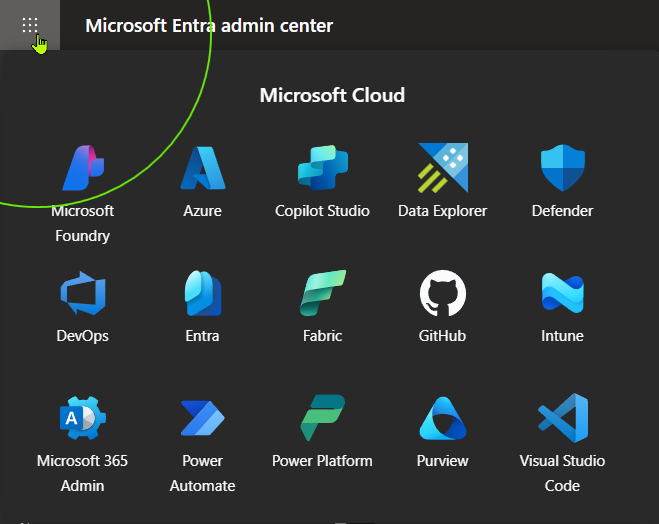
Before deploying on-premises sync binaries, we established our cloud identity boundary within Microsoft Entra ID and configured federated domain ownership to align local Active Directory accounts with cloud User Principal Names (UPNs).
| Setup Task | Target Value / Record | Operational Purpose |
|---|---|---|
| Tenant Provisioning | squirrelworks0.onmicrosoft.com |
Establishes cloud root directory and secures administrative accounts with Microsoft Authenticator MFA. |
| Custom Domain TXT | ad.squirrelworks.dev (Porkbun DNS) |
Validates public domain ownership to allow primary UPN suffix assignment. |
| UPN Suffix Alignment | @ad.squirrelworks.dev |
Configures local AD UPN suffixes in Domain Trusts to ensure seamless login matching across hybrid boundaries. |

TXT record (MS=ms70033739) for ad.squirrelworks.dev in Porkbun to satisfy Microsoft Entra ID custom domain verification.
Preparing dedicated member server APP1 to host Entra Connect required decommissioning legacy identity agents, joining the local domain, and enforcing modern TLS security defaults for embedded authentication frames.
By default, legacy .NET Framework runtimes on Windows Server can default to older SSL/TLS protocols. We updated registry subkeys to force SchUseStrongCrypto and system-default TLS versions across both 32-bit and 64-bit environments:
# Enforce TLS 1.2 for .NET Framework 4.0+ runtimes
Set-ItemProperty -Path 'HKLM:\SOFTWARE\Microsoft\.NETFramework\v4.0.30319' -Name 'SchUseStrongCrypto' -Value 1 -Type DWord
Set-ItemProperty -Path 'HKLM:\SOFTWARE\Microsoft\.NETFramework\v4.0.30319' -Name 'SystemDefaultTlsVersions' -Value 1 -Type DWord
Set-ItemProperty -Path 'HKLM:\SOFTWARE\Wow6432Node\Microsoft\.NETFramework\v4.0.30319' -Name 'SchUseStrongCrypto' -Value 1 -Type DWord
Set-ItemProperty -Path 'HKLM:\SOFTWARE\Wow6432Node\Microsoft\.NETFramework\v4.0.30319' -Name 'SystemDefaultTlsVersions' -Value 1 -Type DWord
To verify that the registry updates were applied successfully, we executed Get-ItemProperty in PowerShell ISE to query the target key path:

Because PowerShell interacts with the Windows Registry via a virtual provider drive (HKLM:), Get-ItemProperty returns both the requested registry value and provider context metadata:
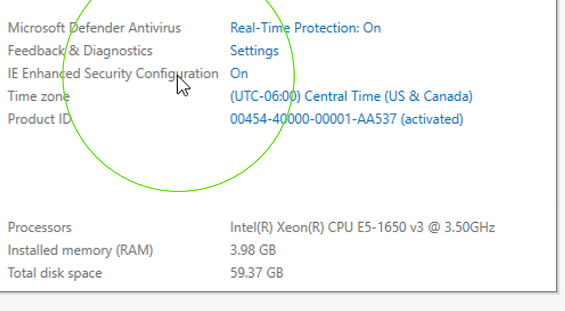
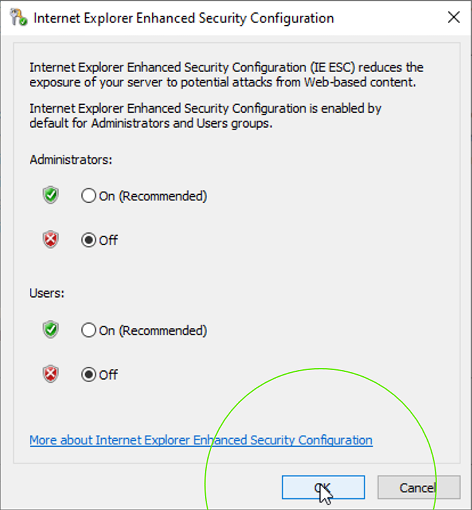
v4.0.30319).HKLM) and underlying core provider engine (Registry).Because the Entra Connect installation wizard launches an embedded browser webview to execute administrator OAuth authentications, disabling IE ESC in Server Manager prevented script blocks and allowed MFA prompts to load properly.
With host prerequisites met, we initiated the deployment of Microsoft Entra Connect Sync onto APP1 to establish our local-to-cloud identity pipeline.
| Pipeline Component | Target Configuration | Operational Function |
|---|---|---|
| Sync Server Host | APP1 (Member Server) |
Executes Entra Connect Sync engine isolated from domain controller core roles. |
| Authentication Model | Password Hash Synchronization (PHS) | Synchronizes obfuscated password hashes to Entra ID for cloud auth fallback and leak-check protection. |
| OU Filtering Scope | OU=Users & OU=Groups |
Restricts synchronization scope strictly to human identities and security groups while excluding service accounts. |

Running Entra Connect Sync on a dedicated member server (APP1) rather than directly on domain controllers follows security best practices, isolating identity synchronization services and preventing local DLL memory conflicts with Active Directory Core services.
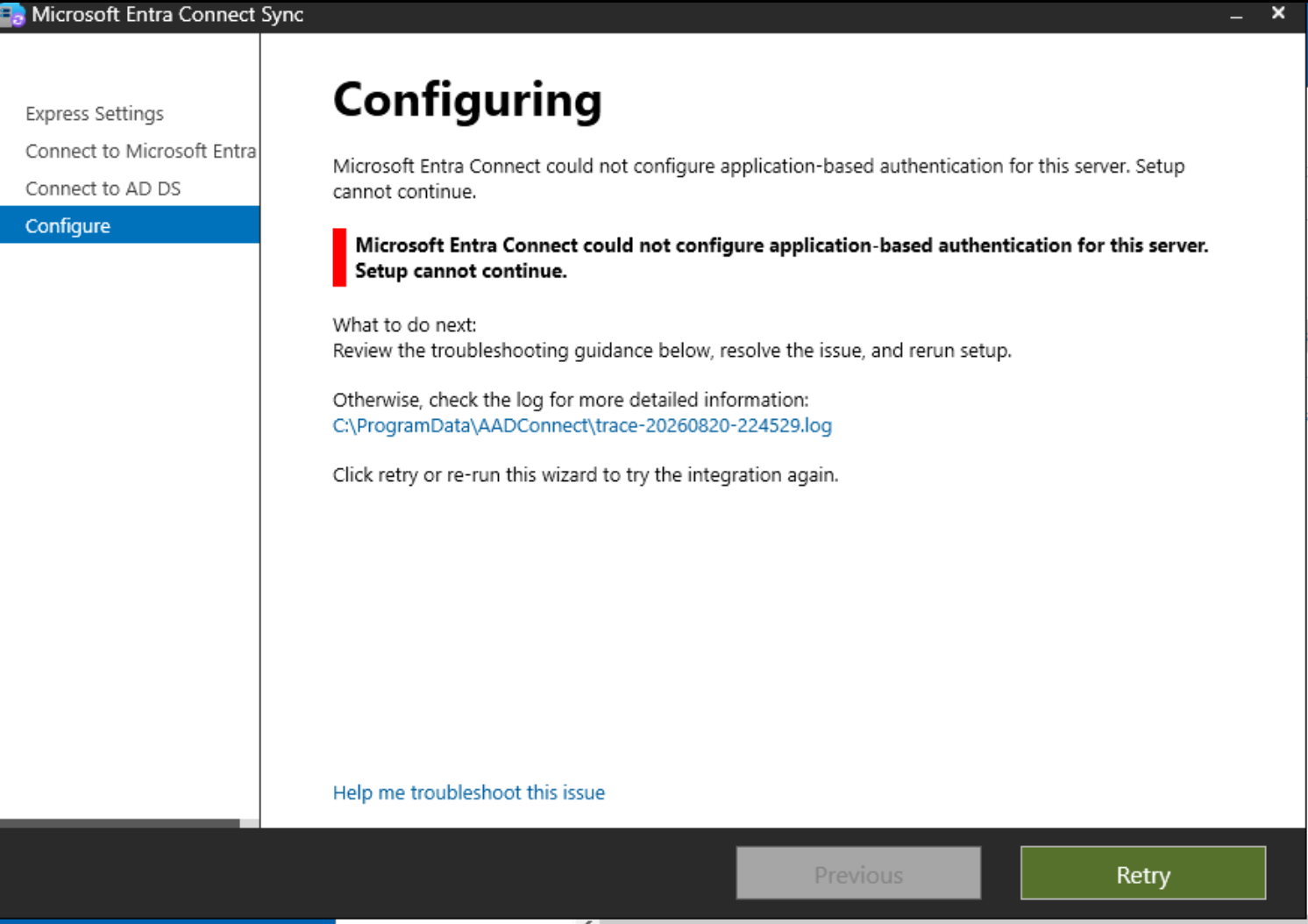
During connector provisioning, setup repeatedly failed while registering the Azure AD Sync Service Principal, returning error code AADSTS700024. Initial remediation investigated PowerShell service account binding via Add-ADSyncAADServiceAccount and local certificate store state, but trace log evaluation revealed an underlying environmental clock conflict.
Entra Connect signs client assertion JWT tokens during cloud handshakes. Microsoft Entra ID enforces strict timestamp verification (nbf / exp) against Azure UTC, rejecting tokens outside a tight skew window.
Following a host maintenance reboot, the hypervisor system time drifted 4 to 5 hours. Because every generated assertion token was evaluated as already expired by Azure endpoints, cloud registration rejected the credentials.
Because NTP daemons typically refuse to step large time offsets automatically, time synchronization had to be restored from the hypervisor host down through the Active Directory domain hierarchy:
# Step 1: Force immediate NTP step & verify upstream synchronization on Proxmox VE host
chronyc makestep
chronyc tracking

# Step 2: Configure DC1 (PDC Emulator) to pull from external pool and force update
w32tm /config /manualpeerlist:"0.pool.ntp.org,0x9 1.pool.ntp.org,0x9" /syncfromflags:manual /reliable:YES /update
Stop-Service w32time ; Start-Service w32time
w32tm /resync /rediscover
w32tm /query /source

# Step 3: Resync member server (APP1) with domain hierarchy & verify system date
w32tm /resync /rediscover
Get-Date

Once time skew was corrected and the Entra Connect wizard completed configuration, local sync health was verified directly on APP1 by managing the engine via PowerShell and monitoring job profiles in the Graphical GUI.
Executing Get-ADSyncScheduler confirmed that the synchronization engine successfully initialized its 30-minute delta cycle schedule and set sync execution to enabled.
To force immediate processing rather than waiting on the 30-minute timer, a delta cycle was manually triggered via PowerShell. The underlying job execution was monitored in real time using the Synchronization Service Manager console (miisclient.exe):
# Import module and verify schedule configuration
Import-Module ADSync
Get-ADSyncScheduler

# Force immediate delta synchronization cycle
Start-ADSyncSyncCycle -PolicyType Delta

# Launch GUI client to inspect live operation steps
C:\Program Files\Microsoft Azure AD Sync\UIShell\miisclient.exe
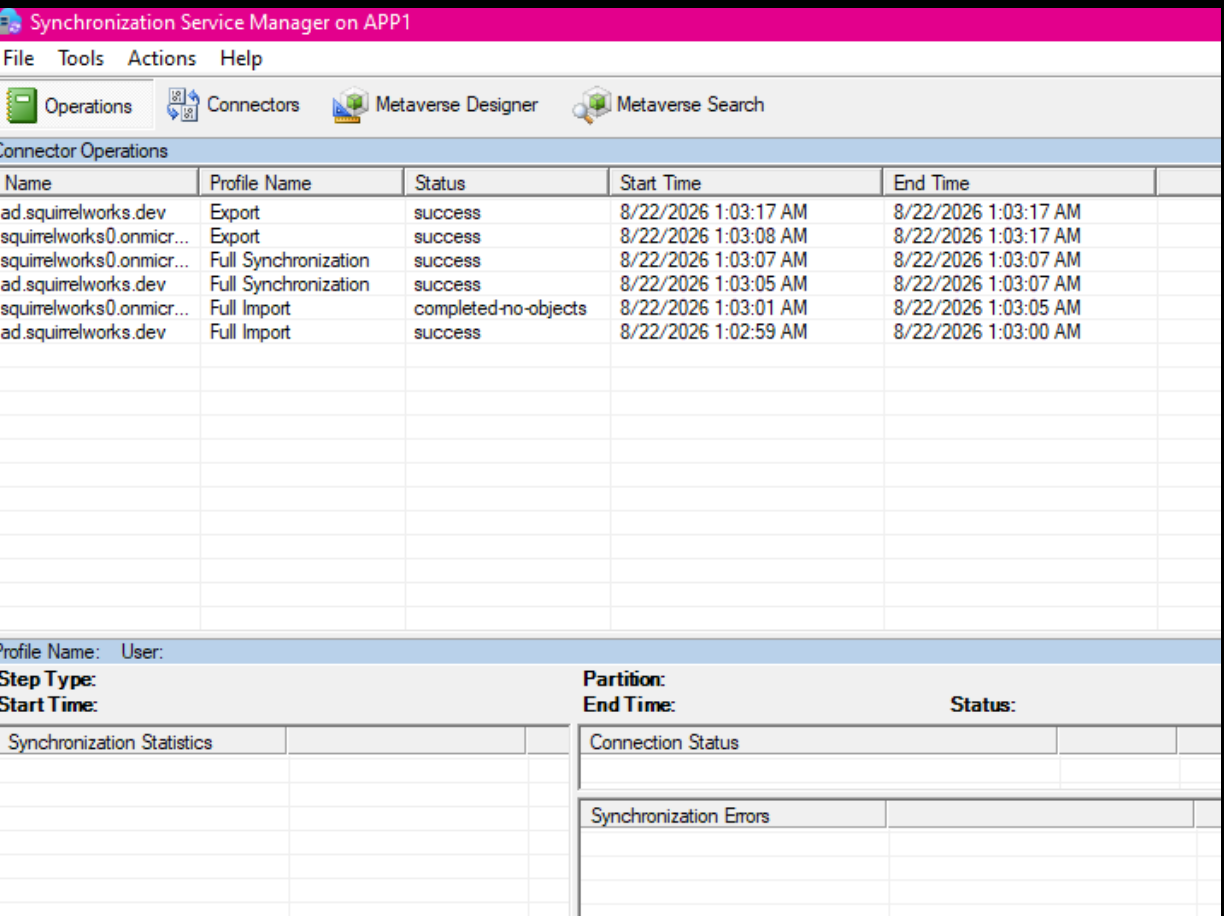
The Synchronization Service Manager (miisclient.exe) confirmed successful processing of all connector operations across both ad.squirrelworks.dev and squirrelworks0.onmicrosoft.com, completing the full Import, Synchronization, and Export pipeline without errors.
During connector provisioning, setup repeatedly failed during Azure AD Sync Service Principal registration with error "Could not configure application-based authentication" (Log event AADSTS700024). Below is the operational execution log tracking our initial focus on permissions and registry keys before pinpointing hypervisor clock skew.
Ran initial MSI installer. Launched setup wizard but encountered embedded browser rendering blocks due to IE Enhanced Security Configuration (IE ESC). Disabling IE ESC in Server Manager allowed the OAuth login frame to load properly.
After granting Enterprise Admin permissions, setup failed at the configuring stage: Could not configure application-based authentication. Restarted ADSync service and retried, triggering error: Scenario was not completed, uninstall and try again.
Executed Enable-TLS12.ps1 to enforce SchUseStrongCrypto for .NET Framework. During uninstalls, PersistedState.xml threw access denied errors; resolved by stopping ADSync, taking file ownership via takeown /f and icacls, and purging cached setup state.
Attempted to manually provision the AAD service account using Add-ADSyncAADServiceAccount and SyncMachineIdentifier. Querying connectors via Get-ADSyncConnector (Type Extensible2) returned empty, showing setup failed prior to writing database objects. Checking certlm.msc confirmed the local Personal store contained no ABA client certificates, shifting focus away from permissions and toward trace log evaluation.
Sync engine trace logs flagged error AADSTS700024 (token invalid / expired). Discovered Proxmox host time had drifted 4+ hours out of bounds following a maintenance reboot. Forced NTP step on hypervisor host (chronyc makestep) and synced domain controller clocks (w32tm /resync). Next installation wizard run completed in a single pass.
# Force .NET 4.0+ runtimes (64-bit & 32-bit WoW64) to use strong TLS cryptography
Set-ItemProperty -Path 'HKLM:\SOFTWARE\Microsoft\.NETFramework\v4.0.30319' -Name 'SchUseStrongCrypto' -Value 1 -Type DWord -Force
Set-ItemProperty -Path 'HKLM:\SOFTWARE\Wow6432Node\Microsoft\.NETFramework\v4.0.30319' -Name 'SchUseStrongCrypto' -Value 1 -Type DWord -Force

# Create Schannel protocol registry keys to enable TLS 1.2 for inbound (Server) traffic
New-Item -Path 'HKLM:\SYSTEM\CurrentControlSet\Control\SecurityProviders\SCHANNEL\Protocols\TLS 1.2\Server' -Force | Out-Null
Set-ItemProperty -Path 'HKLM:\SYSTEM\CurrentControlSet\Control\SecurityProviders\SCHANNEL\Protocols\TLS 1.2\Server' -Name 'Enabled' -Value 1 -Type DWord -Force
Set-ItemProperty -Path 'HKLM:\SYSTEM\CurrentControlSet\Control\SecurityProviders\SCHANNEL\Protocols\TLS 1.2\Server' -Name 'DisabledByDefault' -Value 0 -Type DWord -Force

# Create Schannel protocol registry keys to enable TLS 1.2 for outbound (Client) traffic
New-Item -Path 'HKLM:\SYSTEM\CurrentControlSet\Control\SecurityProviders\SCHANNEL\Protocols\TLS 1.2\Client' -Force | Out-Null
Set-ItemProperty -Path 'HKLM:\SYSTEM\CurrentControlSet\Control\SecurityProviders\SCHANNEL\Protocols\TLS 1.2\Client' -Name 'Enabled' -Value 1 -Type DWord -Force
Set-ItemProperty -Path 'HKLM:\SYSTEM\CurrentControlSet\Control\SecurityProviders\SCHANNEL\Protocols\TLS 1.2\Client' -Name 'DisabledByDefault' -Value 0 -Type DWord -Force
# Stop sync engine & take ownership of locked state files
Stop-Service ADSync -Force
takeown /f "C:\ProgramData\Microsoft Azure AD Connect\PersistedState.xml"
icacls "C:\ProgramData\Microsoft Azure AD Connect\PersistedState.xml" /grant Administrators:F
Remove-Item "C:\ProgramData\Microsoft Azure AD Connect\PersistedState.xml" -Force
# Force immediate NTP step on Proxmox hypervisor host
chronyc makestep

# Force domain controller resync on Windows Server
w32tm /resync /force
Entra Connect signs client assertion JWT tokens during cloud handshakes. Microsoft Entra ID enforces strict timestamp verification (nbf / exp) against Azure UTC, rejecting tokens outside a tight skew window.
Following host maintenance, the hypervisor clock drifted 4+ hours out of sync. Because every generated assertion token was evaluated as expired by Azure endpoints, cloud registration rejected credentials despite successful interactive 2FA logins.
Interactive 2FA prompts succeed at the HTTPS transport layer even when host time is inaccurate. However, background application-based assertions fail downstream if system clock skew exceeds Azure tolerances. Re-synchronizing host NTP time immediately restored certificate validation.
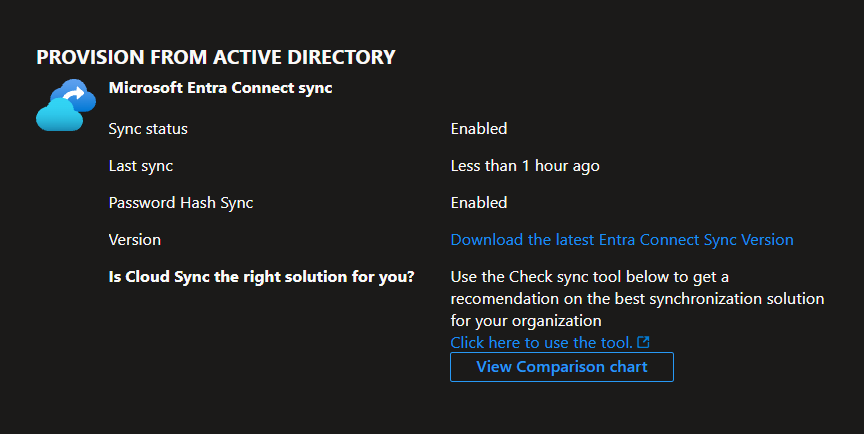
By working through prerequisite hardening, working past application-based authentication hurdles, and aligning real-time clock synchronization across host boundaries, our hybrid identity baseline is fully established. With on-premises Active Directory objects cleanly syncing into Microsoft Entra ID, the environment is ready to extend identity boundary controls into downstream cloud workloads.
Next in this series: Phase 4: Entra ID OIDC Integration, Group-to-Role Mapping & Kubernetes RBAC →